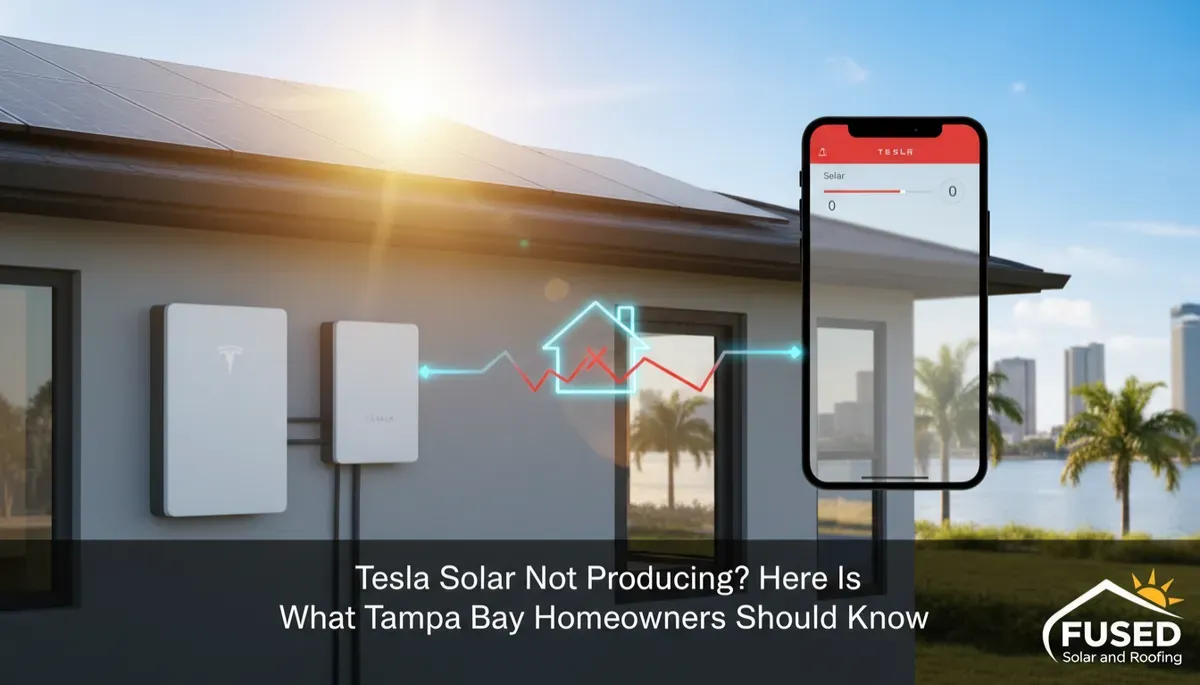
Tesla Powerwall App Alerts: What They Mean in Tampa Bay
When your Tesla app shows a Powerwall or Tesla Solar Inverter alert, it falls into one of four groups: a note that needs nothing from you, an outage message that asks you to cut back on power use, a connection problem you can often clear at your own router, or a fault that needs a licensed technician. This post walks through each alert Tesla lists for homeowners, what it generally means, and the safe step you can take, if there is one. Fused Solar and Roofing is a licensed roofing (CCC1331058), electrical (EC13014750), and building contractor (CBC1252064) — all three in-house.
Before anything else, one rule covers every alert in this post. Never open, unscrew or remove any cover on a Powerwall, Gateway, inverter or electrical panel, and never touch wiring: solar panels make electricity whenever the sun is up, even with the system turned off. The steps below happen in the Tesla app, at your Wi-Fi router, or at the outside on/off switch on the side of the Powerwall where Tesla names it. Nothing here asks you to go inside the equipment.
If you ever notice smoke, a burning smell, sparks, buzzing, melting, heat coming off the equipment, water on or in it, or visible damage, stay away from the equipment and keep children and pets away. Call 911 if there is smoke or fire. Then call for service. Do not try any troubleshooting in that situation, no matter what the app says.
1. How to Read a Tesla App Alert Without Guessing
Tesla Powerwall 2, Powerwall+, Powerwall 3 and the Tesla Solar Inverter all report to the same Tesla app. When something changes, the app posts a short alert name, such as Grid Outage or Device Offline. The name tells you a lot. Some alerts are simply the system letting you know what it is doing. Others mean the battery is low during an outage. A few mean the system has found a fault and has stopped part of its work until a technician checks it.
The calm way to handle any alert is to read the exact name, find it in the sections below, and do the step listed for it. If no step is listed, the right move is to book a diagnostic visit. A step may clear the alert. If it does not, or if anything about the situation is unclear, stop there and get a technician out. That keeps you safe and keeps a small issue from turning into a larger one.
2. Alerts That Are Just Information
Several Tesla alerts are there to keep you informed. They do not ask anything of you, and there is nothing to fix. Here is what each one means.
- Grid Reconnected: utility power has come back after an outage, and the home is back on the grid. Nothing to do.
- Storm Watch: the system is preparing for severe weather in your area. Nothing to do.
- Calibration in Progress: Powerwall is calibrating, which can take up to 24 hours. Nothing to do.
- Powerwall Balancing in Progress: Powerwall is balancing, which can take up to about 6 hours. Nothing to do.
- Event Scheduled / Event Beginning: a scheduled event is coming up or has started. Nothing to do.
The Tesla Solar Inverter has one more of these. A dark inverter screen at night is normal. Tesla calls this Night Mode, and the screen goes dark because there is no sunlight to convert into power. It will wake up again when the sun comes back.
🔑 Key Takeaway: Grid Reconnected, Storm Watch, Calibration in Progress, Powerwall Balancing in Progress, Event Scheduled, Event Beginning and a dark inverter screen at night are all normal. You do not need to change anything or call anyone for these.
3. Outage Alerts: Grid Outage, Low Energy, Overloaded and Waiting for Grid
These alerts show up when the utility grid goes down and Powerwall is carrying the home. The safe steps here are about how much power the house is using, not about the equipment itself.
Grid Outage
The grid is down and Powerwall is running the home. Turn off big loads, such as the pool pump, oven, dryer and any extra air conditioning, to stretch your backup time. Nothing else is needed. When the grid comes back, you will see Grid Reconnected.
Low Energy While Off-Grid
The battery is getting low during an outage. Cut power use right away. Turn off anything large that you do not need, and keep the essentials running as long as you can.
Powerwall Overloaded
During an outage, the home is pulling more power than Powerwall can give. Turn off high-power items, such as the oven, dryer, pool pump or an extra AC unit. Powerwall retries on its own within about 2 minutes, so give it a moment after you cut the load.
Waiting for Grid
The battery is empty and Powerwall has shut down until the grid returns. Wait for grid power. When the utility restores service, the system will pick back up.
Across all four of these, the thing you control is the load. Turning off pool pumps, dryers and ovens early, before the battery runs low, stretches backup time the furthest. If you are not sure whether the power is out for your whole street or just your home, you can check with your utility to see whether there is a reported outage in your area.
Request a diagnostic visit at https://fusedsolarandroofing.com/solar-repair
4. Waiting for Solar, Waiting for User Input and Side Switch Off
These three alerts involve the on/off switch on the side of the Powerwall. That outside switch is the one piece of equipment Tesla names for homeowners to touch, and it is the one piece we will mention here.
Waiting for Solar / Waiting for User Input
Powerwall ran out of energy. Turn off big loads in the home. Then, while the sun is shining, turn the on/off switch on the side of the Powerwall off and back on. Tesla places that switch on the right side of Powerwall 2 and Powerwall+, and on the left side of Powerwall 3. Touch the outside switch and nothing else. If the Powerwall does not restart, book a technician.
Side Switch Off
The side switch on the Powerwall is in the off position. If no one in the home turned it off on purpose, turn the outside side switch back on. If someone did turn it off for a reason, talk with them before you change it.
⚠️ Warning: The side switch is on the outside of the Powerwall, and no cover needs to come off to reach it. If you cannot find it without opening anything, stop and book a technician rather than looking further.
5. Device Offline: When the App Loses Its Connection
Device Offline, or a message that your system is not connected to the internet, is one of the alerts homeowners see often. The good news is that the system still runs and still backs up the home. The piece that is missing is the app data.
Here is the safe order of steps. Check that your home internet is working on another device, such as a phone on Wi-Fi or a laptop. Restart your Wi-Fi router. Then reconnect the system in the Tesla app by going to Settings, then Configure Wi-Fi. After you reconnect, data can take up to 24 hours to show in the app, so give it a full day before you judge the result.
If the system is still offline after that, book a technician. A technician can check the connection at the equipment, which is not something a homeowner should try.
💡 Pro Tip: If you change your internet provider or your Wi-Fi password, plan to reconnect your Tesla system in the app at Settings, then Configure Wi-Fi, the same day. It saves you from a Device Offline alert and a gap in your app data.
6. Gateway Offline, Meter Offline and Tesla Solar Inverter Alerts
Gateway Offline / Meter Offline
These alerts mean part of the system that tracks power flow is not reporting. Tesla offers a Troubleshoot button on its support page for these. Try that button when there is no outage and no bad weather. If it does not clear the alert, book a technician.
Tesla Solar Inverter: Bridge Offline
Bridge Offline on the Tesla Solar Inverter means the inverter is still producing power, but the app is not updating. Check your home internet and restart your router. Your panels keep working in the meantime, so this is a data issue, not a production issue.
Tesla Solar Inverter: Dark Screen at Night
As covered above, a dark inverter screen at night is normal. This is Night Mode. If the screen is dark during a bright, sunny afternoon and the app shows no production, that is a different situation and worth a diagnostic visit.
💡 Pro Tip: Save the Troubleshoot step for a clear, calm day with the grid up. Tesla says not to run it during an outage or bad weather, and waiting a few hours for better conditions is the safer choice.
7. Alerts That Need a Technician
Some alerts mean the system has found a fault. For these, there are no homeowner steps. The right move is to book a diagnostic visit and let a licensed technician check the equipment. Please do not try resets, breaker changes or power cycles on your own for any of these.
- Breaker Open
- Solar Production Limited
- Powerwall Disabled, which may show as "Service Required - Fault Detected"
- Rapid Shutdown Device Off
- Any Backup Switch Fault or Lockout
- Tesla Solar Inverter System Failure
- Powerwall 3 flashing red light
- Powerwall 2 or Powerwall+ flashing light
- Any full power-cycle procedure
A note on breakers. Even where a manufacturer says a homeowner may reset a breaker, Fused Solar and Roofing does not walk customers through breaker steps. Breaker boxes and electrical panels are part of the equipment we ask you to leave closed. If the app says Breaker Open, book a technician.
Our on-site diagnostic visit is $395 and includes a written report with photos. The report shows what the technician found, what it means, and what the options are, so you have a clear record to look back on.
When you book, it helps to have a screenshot of the alert, the date and time it started, and anything that happened around then, such as a storm, a power outage or a change to your internet. That gives the technician a head start before they arrive.
8. Ask Sunny About Your Tesla Alert, Any Hour
Alerts do not always show up during business hours. A Waiting for Solar message at 9 p.m. or a Device Offline alert on a Sunday morning can leave you wondering whether it is urgent. That is where Sunny comes in.
Sunny is Fused Solar and Roofing's AI assistant, available any hour on fusedsolarandroofing.com, and she can read a screenshot of your app or a photo of your equipment's display. You will find her in the chat bubble at the bottom-right corner of the website.
Type the alert name exactly as it appears in your Tesla app, or send a screenshot. Sunny will tell you what that alert generally means. She will remind you never to open any equipment. If the alert has a safe homeowner step, like restarting your Wi-Fi router for Device Offline or turning off big loads during a Grid Outage, she will suggest it. If the alert needs a technician, she will skip the steps and collect your property address and the best day and time for a visit.
Sunny works from the same safety rules in this post. She will not walk you through breakers, covers or wiring, and if you mention smoke, a burning smell, sparks, heat or water, she will tell you to stay away from the equipment, call 911 if there is smoke or fire, and book an urgent technician visit.
Frequently Asked Questions
1. What does Waiting for Solar mean on my Powerwall?
It means Powerwall ran out of energy and is waiting for solar power to start again. Turn off big loads, then, while the sun is shining, turn the outside on/off switch on the side of the Powerwall off and back on. That switch is on the right side of Powerwall 2 and Powerwall+ and on the left side of Powerwall 3. If it does not restart, book a technician.
2. Why does my Tesla app say Device Offline?
Device Offline means the app has lost its internet connection to your system. The system still runs and still backs up the home; the app data is what is missing. Check your home internet, restart your Wi-Fi router, and reconnect in the Tesla app at Settings, then Configure Wi-Fi. Data can take up to 24 hours to show, and if it stays offline, book a technician.
3. Can a different company service my Tesla Powerwall?
Yes. Fused Solar and Roofing services Tesla Powerwall systems for paying customers, including systems put in by other installers. The visit starts with an on-site diagnostic, and you can request one at our solar repair page.
4. What should I do when my Tesla app says Grid Outage?
Grid Outage means the utility grid is down and Powerwall is running your home. Turn off big loads such as the pool pump, oven, dryer and extra air conditioning to stretch your backup time. Nothing else is needed, and you will see Grid Reconnected when utility power returns.
5. Is it normal for my Tesla Solar Inverter screen to go dark at night?
Yes. A dark inverter screen at night is normal, and Tesla calls it Night Mode. The inverter has no sunlight to work with after dark, and it will come back on its own when the sun returns. A dark screen with no production on a sunny afternoon is a different matter and worth a diagnostic visit.
6. What should I do if my Tesla app says Breaker Open?
Breaker Open needs a licensed technician, so there are no homeowner steps for it. Fused Solar and Roofing does not walk customers through breaker resets, even where a manufacturer allows it, because breaker boxes and panels should stay closed. Book a diagnostic visit and keep a screenshot of the alert for the technician.
Request a diagnostic visit at https://fusedsolarandroofing.com/solar-repair
Fused Solar and Roofing is a licensed roofing (CCC1331058), electrical (EC13014750), and building contractor (CBC1252064), serving Hillsborough, Pinellas, Pasco, and Manatee counties since 2007, and services solar and battery systems of all brands, including systems whose original installer is no longer in business. Fused Solar and Roofing is an EnergySage Elite Installer with a 5.0/5 rating and 21+ verified reviews — independent verification, earned not purchased.
Book your Tesla system diagnostic at https://fusedsolarandroofing.com/solar-repair
